
Manual triage is one of those small operational tasks that adds up quickly. An email comes in and a case is created. Someone opens the case, reads the email, decides whether it is a question, a problem, a request, or something else, and then updates the case categorization manually. That works when volumes are low. But it does not scale well when the inbox grows.
With AI-powered email classification in D365 Customer Service, we can let Copilot classify incoming emails into predefined categories directly as part of the service experience. Instead of building and maintaining a separate AI Builder model to interpret the content of each email, we can use the native classification capability to understand the customer’s intent and use that result in downstream automation. With a small adjustment to the classic Automatic Record Creation cloud flow, we can then use that classification to set the case type automatically when the case is created.
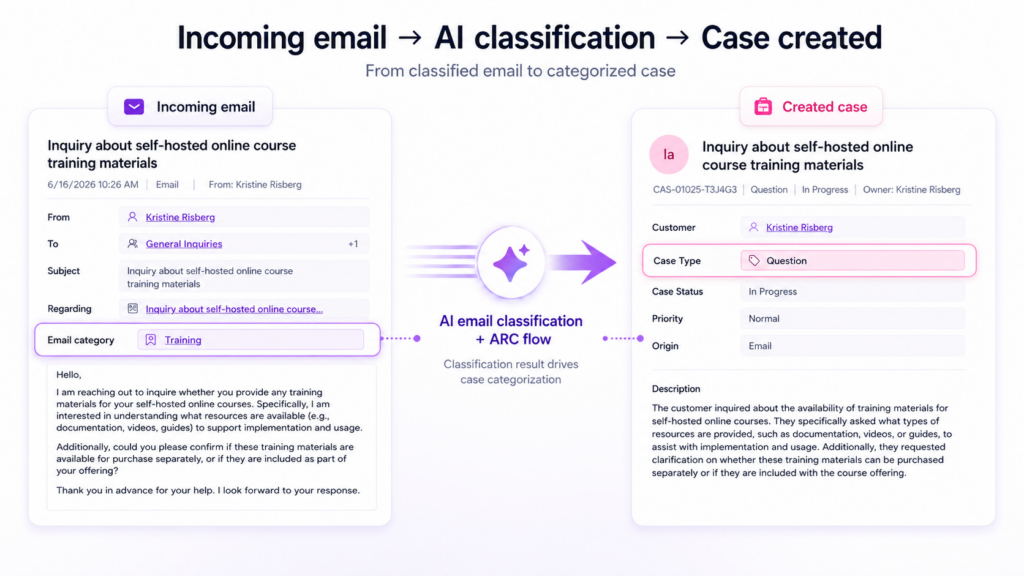
In this post, I’ll walk through how to combine AI-powered email classification with Automatic Record Creation to remove one more manual step from case triage.
The categorization scenario
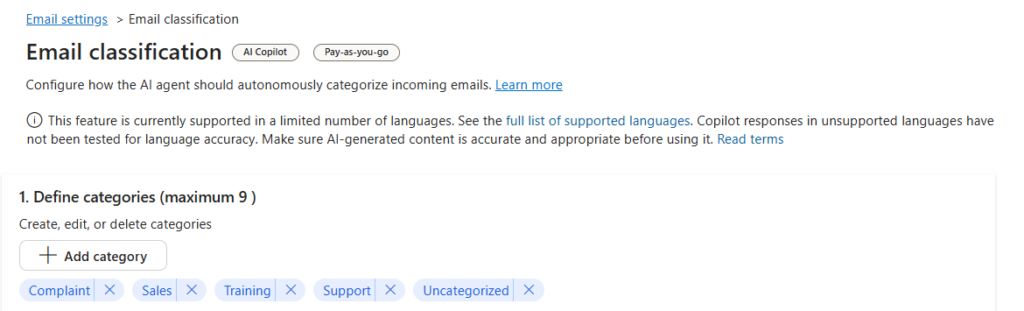
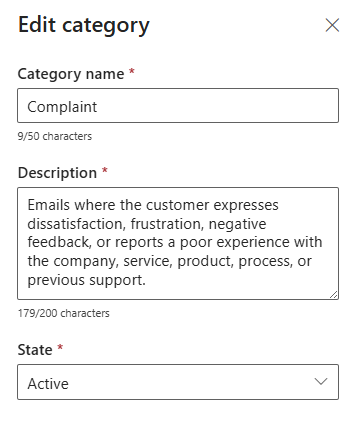
In my example, incoming emails are classified into the following AI email categories:
- Complaint
- Sales
- Support
- Training
- Uncategorized
The goal is to translate these email categories into the standard Case Type choice field on the Case table. This could be any option set on the Case entity or custom table used for ”tagging” cases.
In my environment, Case Type has these standard values:
| Case Type label | Value |
|---|---|
| Question | 1 |
| Problem | 2 |
| Request | 3 |
| Incident | 4 |
The mapping used will be:
| Email classification category | Case Type |
|---|---|
| Complaint | Problem |
| Incident | Incident |
| Sales | Request |
| Support | Request |
| Training | Question |
| Uncategorized | Question |
| Default | Question |
So, for example, if Copilot classifies an incoming email as Complaint, the created case should automatically get Case Type = Problem.
Why not just use unified routing work classification?
When working with unified routing, you can use work classification rules to add or derive information about incoming work items before they are routed. These rules are useful when you want to classify work based on conditions, set routing attributes, identify skills, or otherwise enrich the work item before queue assignment. I’ve worked with several clients where we’ve used the classification rules to try and identify keywords in the case title or the case description (if this is parsed from the incoming email) but this method is case sensitive and has to be an exact match for the condition to be fulfilled.
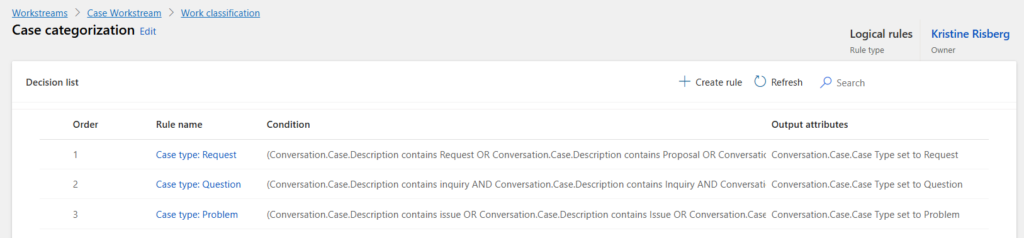
And this is where the AI classification comes in handy, as it can take the whole email content into context.
However, the work classification rules pose another limitation in this scenario. Work classification rules follow the record type of the workstream where they are configured. Meaning, if you are routing email records, the workstream evaluates email records. If you are routing case records, the workstream evaluates case records.
So in this example, cases are created from incoming email messages, and the actual routing is handled by a case record workstream. That means the work classification logic is running in the context of the case table, not directly in the context of the incoming email table. The AI email classification value is stored on the email record, so the case record does not directly contain that email classification lookup.
At first glance, you might think: “Can’t I just use related email messages in the case workstream condition?” Not really.
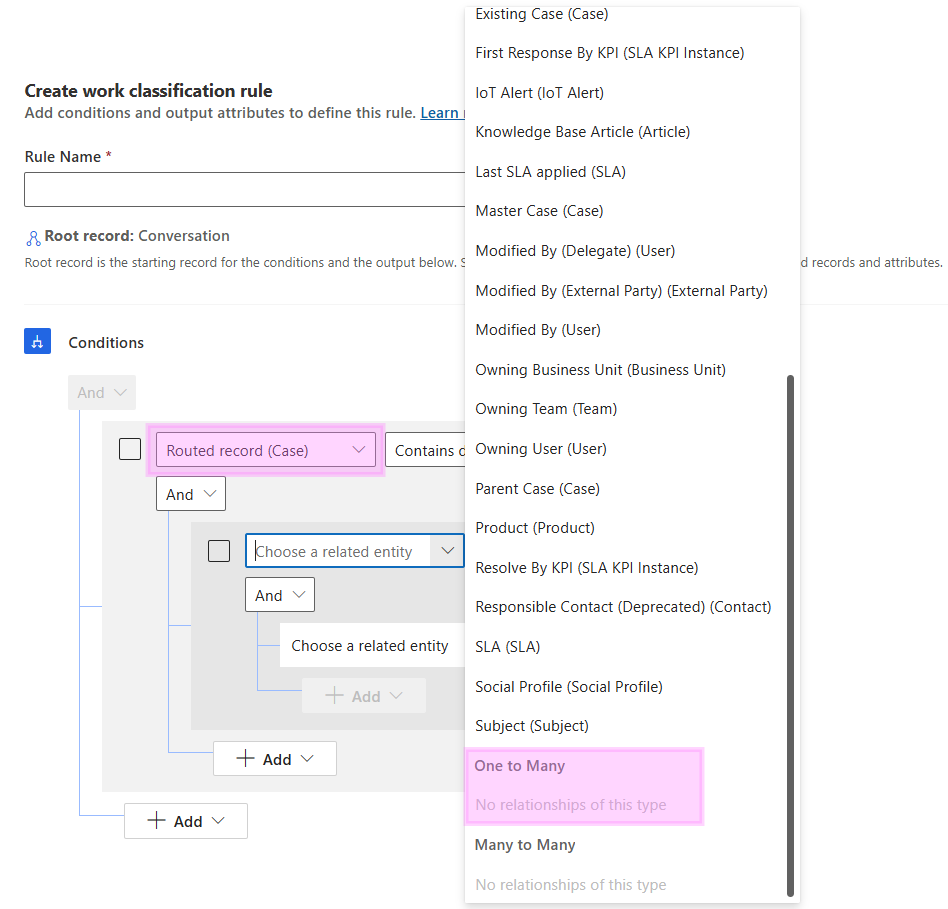
A case can have many related activities, including many email messages. That relationship is effectively one-to-many from the case to its activities. Because of that, the case workstream cannot reliably know which related email message it should use as the source for classification. Is it the original incoming email? A later reply? Another related activity? That makes this difficult to solve cleanly inside unified routing work classification alone.
But if you use the classic Automatic Record Creation cloud flow, the flow is triggered by the incoming email activity. And from that trigger, you have access to the email record and its AI classification value before the case is created. This is the key.
The solution pattern
The solution is to extend the Microsoft created classic Automatic Record Creation cloud flow. Instead of trying to derive Case Type later in the case workstream, we do it while the incoming email is being processed by the ARC flow.
Technically, this could also be handled directly in the ARC rules. However, since each rule can only match against one classification outcome, that approach would require one separate ARC rule per category or case type. For a small number of categories that might be manageable, but it quickly becomes repetitive and harder to maintain as the classification model evolves. By handling the mapping inside the ARC flow instead, we can keep the ARC rule configuration simpler and centralize the classification-to-case-type logic in one place.
The flow logic looks like this:
- An incoming email triggers the ARC cloud flow.
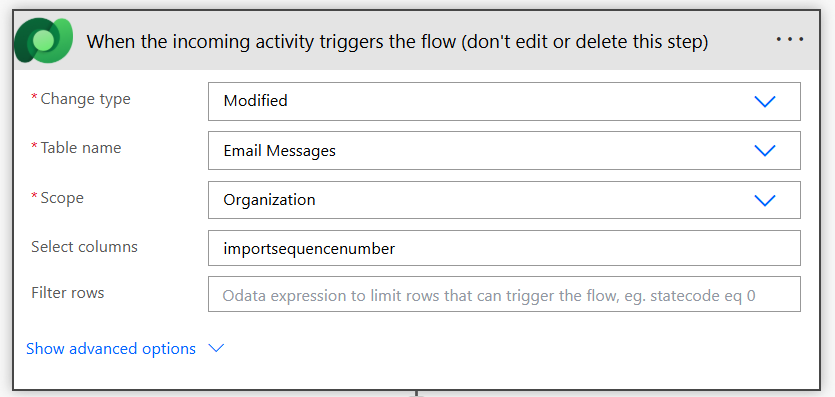
2. The flow retrieves the email classification category record that was assigned to the incoming email by Copilot, using @{triggerOutputs()?[’body/_msdyn_emailclassificationcategory_value’]}
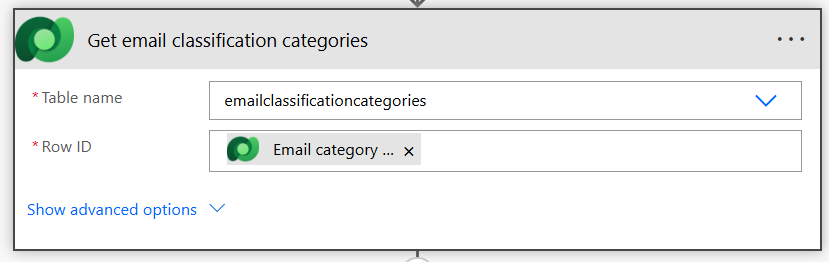
3. A switch action uses the name of the retrieved email classification category to decide which Case Type value to set, using expression trim(string(outputs(’Get_email_classification_categories’)?[’body/msdyn_name’])) This expression takes the category name from the email classification category record, converts it to text, and removes any extra spaces before matching it against the switch values, such as Sales, Training, Support, or Uncategorized. Note that switch values are case sensitive, so they need to match your case type (or other categorization) values exactly.
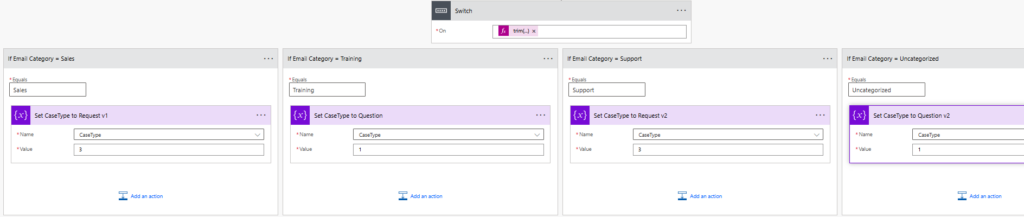
4. Based on the matching condition, the flow populates the CaseType variable.
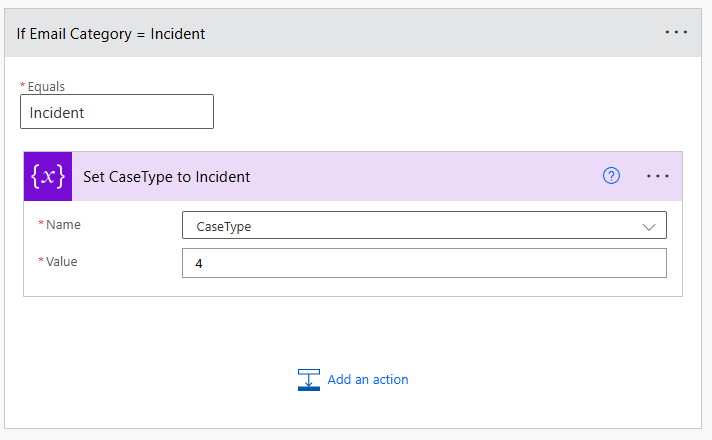
For example, if the AI deems the email reports an Incident, the email will be classified with category Incident, and the flow will set the corresponding case type code in the case type variable.
5. The case type is then set in the Create a record action, by populating with the CaseType variable value using expression int(variables(’CaseType’))
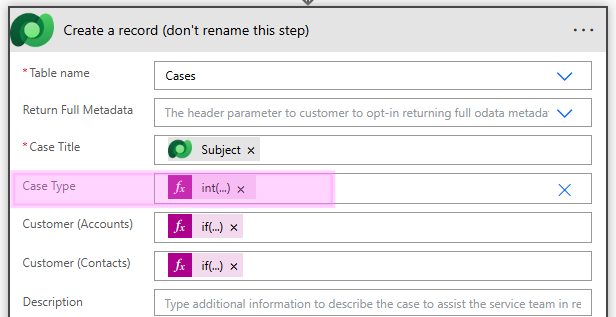
This allows the email category to drive the case categorization before the case is created.
Setting up the email classification categories
Email classification is configured in Copilot Service admin center -> Customer support -> Email settings.
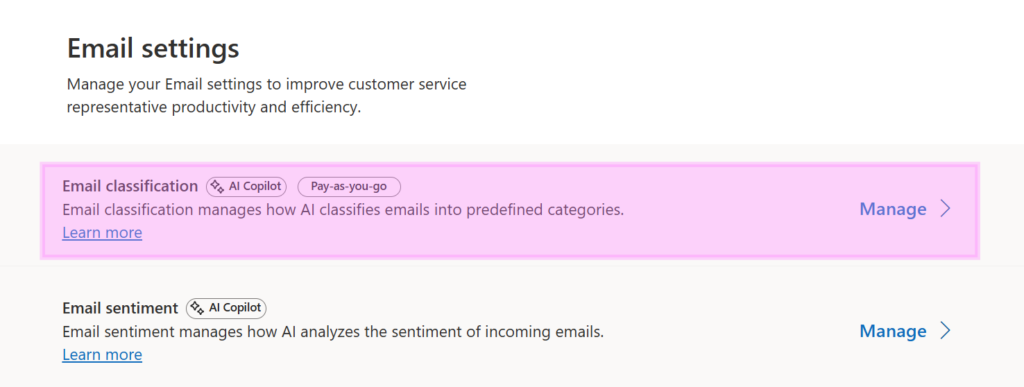
The first step is to define the categories the emails should be classified into.

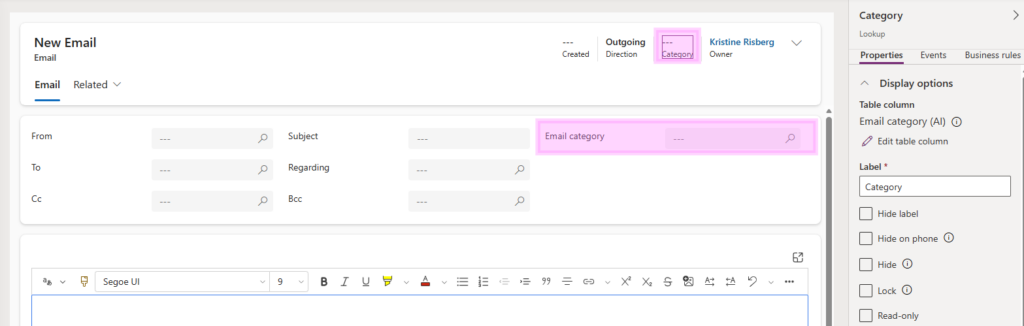
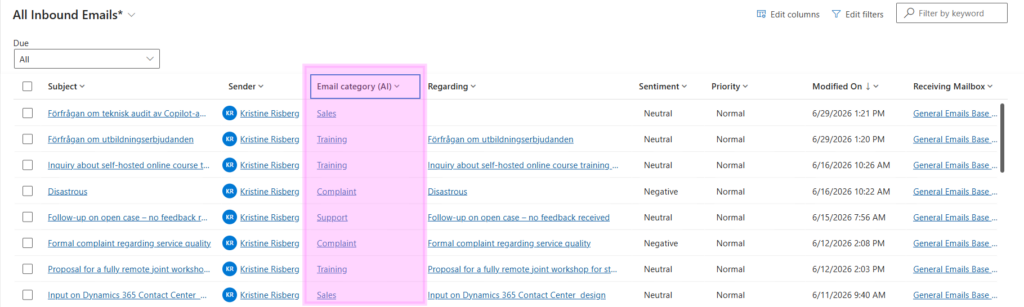
The classification result is written back to the Email table in a lookup column called Email category (AI) with schema name msdyn_emailclassificationcategory which belongs to the table emailclassificationcategory.
Each category needs a description so that the AI understands which category output to use.
I’ve also added the email category column to the email form used, so that users can see the classification directly on the email record. This is useful not only for automation, but also for transparency. CSRs can see how the email was classified before or after the case is created.
The column can also be added to list views for easy overview and filtering.
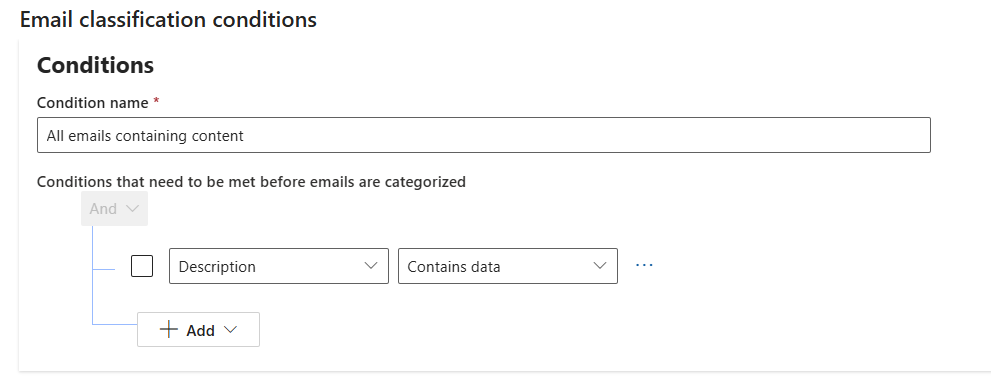
The second step of the setup is to choose which emails to categorize.

My rule has the basic condition that the email should contain data, but this could be detailed further.
The third step is to define when the emails should be categorized. In my scenario they should be processed as soon as they arrive, since I need to use the classification value in the record creation flow.

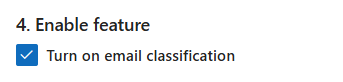
Lastly, you need to check that the feature is enabled.
Updates to the classic ARC cloud flow
The standard ARC cloud flow already contains the core steps needed to process the incoming email activity and create the case. The custom logic needs to added before the Create a record step, since we want to populate the case type when creating the case.
The added steps are:
- Initialize variable for CaseType
- Get email classification categories
- Switch on the category name
- Set CaseType based on the matched category
- Use CaseType in the Create a record action
Step 1: Initialize a CaseType variable
Add an Initialize variable action, with variable type String.
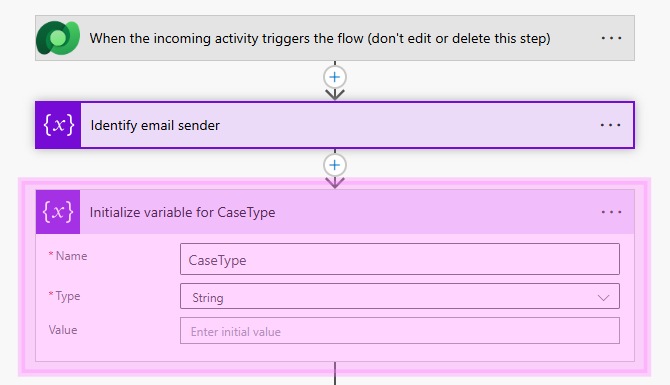
This variable will later hold the numeric value for the Case Type choice field.
Step 2: Get the email classification category row
The email classification field on the Email table is a lookup to table emailclassificationcategory, to which each category added in CSAC is written.
The value from the trigger (_msdyn_emailclassificationcategory_value) does not contain the text label, such as Complaint or Training, nor the value. It contains the guid of the related email classification category row. Which means that the below matching won’t work as a Switch condition, as the left side is a guid and the right side is text. They will never match.
_msdyn_emailclassificationcategory_value equals Complaint
So, to get the actual category name, we need to add a Dataverse Get a row by ID action for table emailclassificationcategories. For Row ID, we use the lookup value from the incoming email, triggerOutputs()?[’body/_msdyn_emailclassificationcategory_value’]
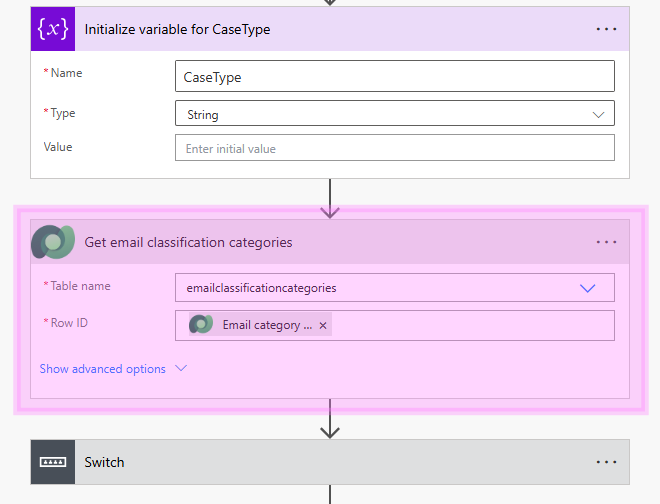
This retrieves the related Email Classification Category row. The output contains the readable category name, for example Complaint or Training.
Step 3: Add a Switch action
Next, we add a Switch action to evaluate the category name from the Get row action. To produce a clean string value such as Complaint or Training, use the following expression in the Switch On field:
trim(string(outputs('Get_email_classification_categories')?['body/msdyn_name']))
One thing to keep in mind is that Switch matching is case-sensitive, so if the Switch input is converted to lowercase, then the case labels must also be lowercase.
Step 4: Configure the Switch branches
Each Switch branch sets the CaseType variable.
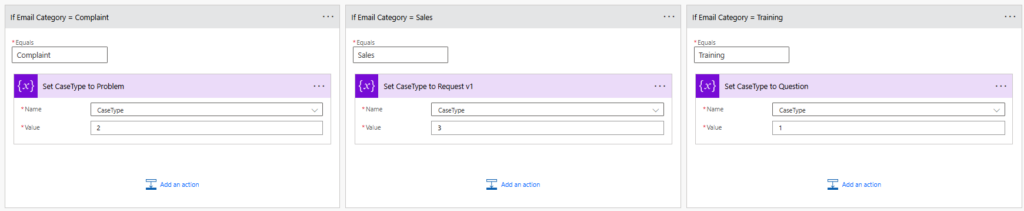
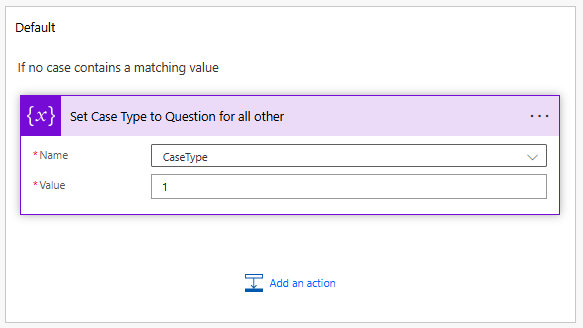
In the Default branch, I’ve set CaseType to 1 (Question). This ensures that if no category matches, the case still gets a safe fallback value.
Step 5: Use CaseType when creating the case
In the standard ARC flow, the case is created in the Create a record action. In the Case Type field, use the CaseType variable. Because Case Type is a choice field, the value must be passed as an integer. Use the expression:
int(variables('CaseType'))
This converts the variable value from string to integer before writing it to the Case Type field.
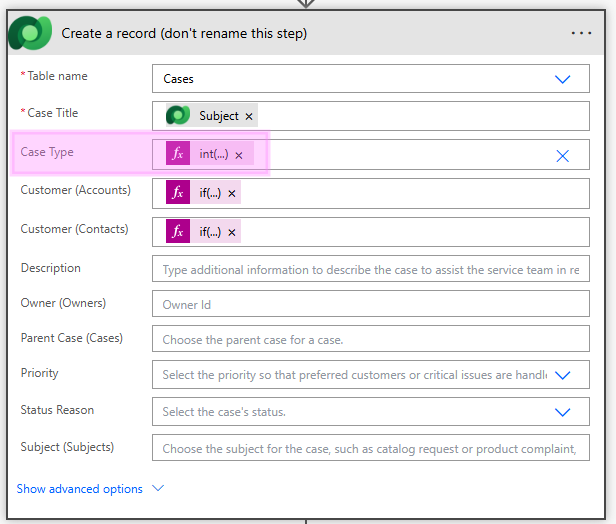
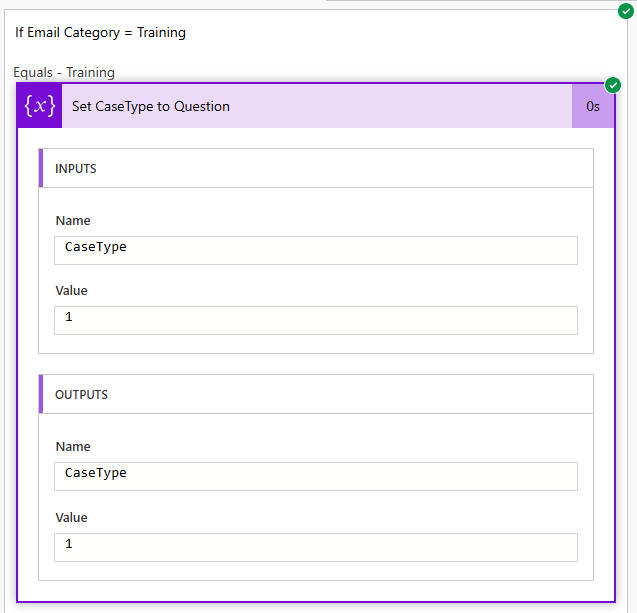
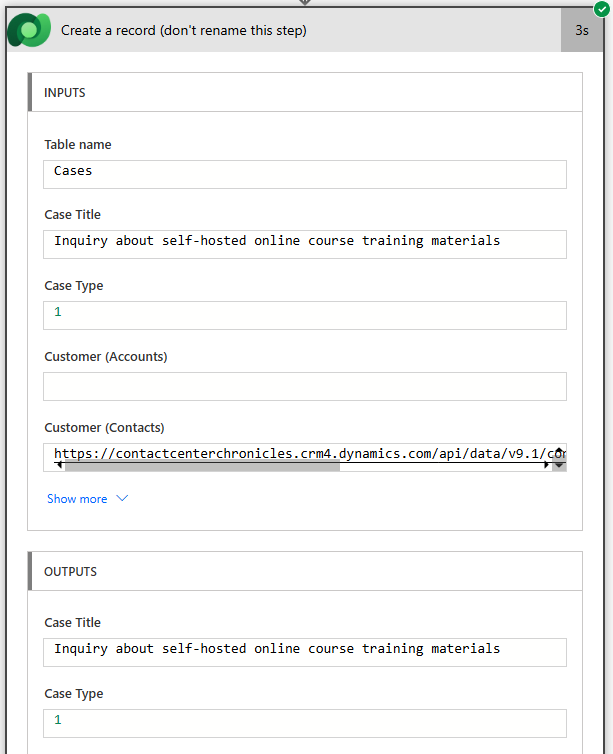
As an example; when the incoming email is classified as Training, the flow sets CaseType to 1, and the created case gets Case Type = Question.
End-to-end example
Here is what happens for a training-related email. An incoming email is received with the subject ”Inquiry about self-hosted online course training materials”.
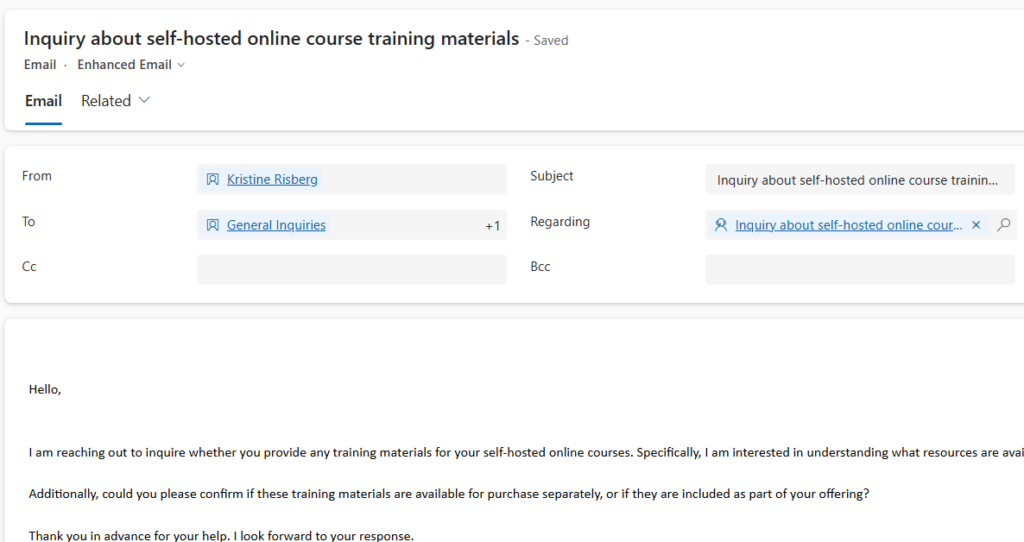
Copilot classifies the email as Training.

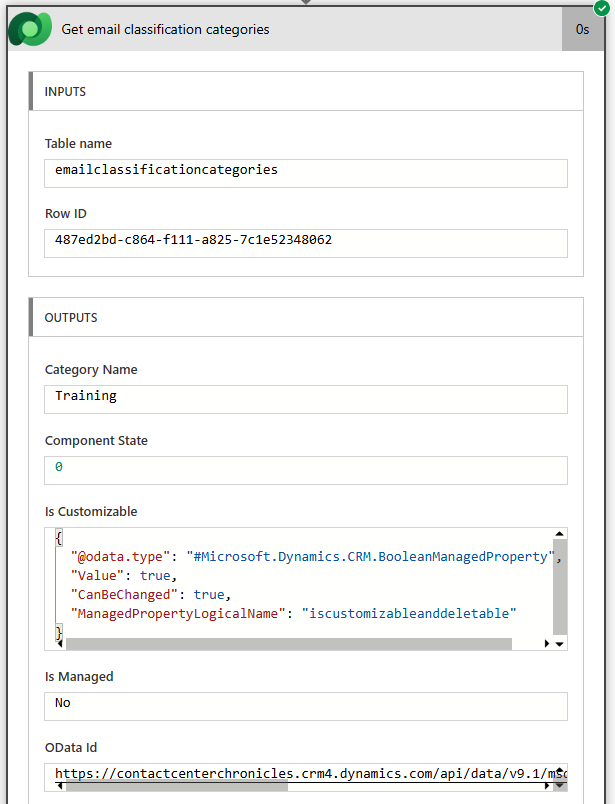
The ARC flow is then triggered by the email activity. In the flow run history, we can see that the lookup from the incoming email classification category has resolved to the category name Training. This confirms that the email was classified by Copilot and that the ARC flow can now use that category name in the Switch step to decide which Case Type should be applied to the new case.
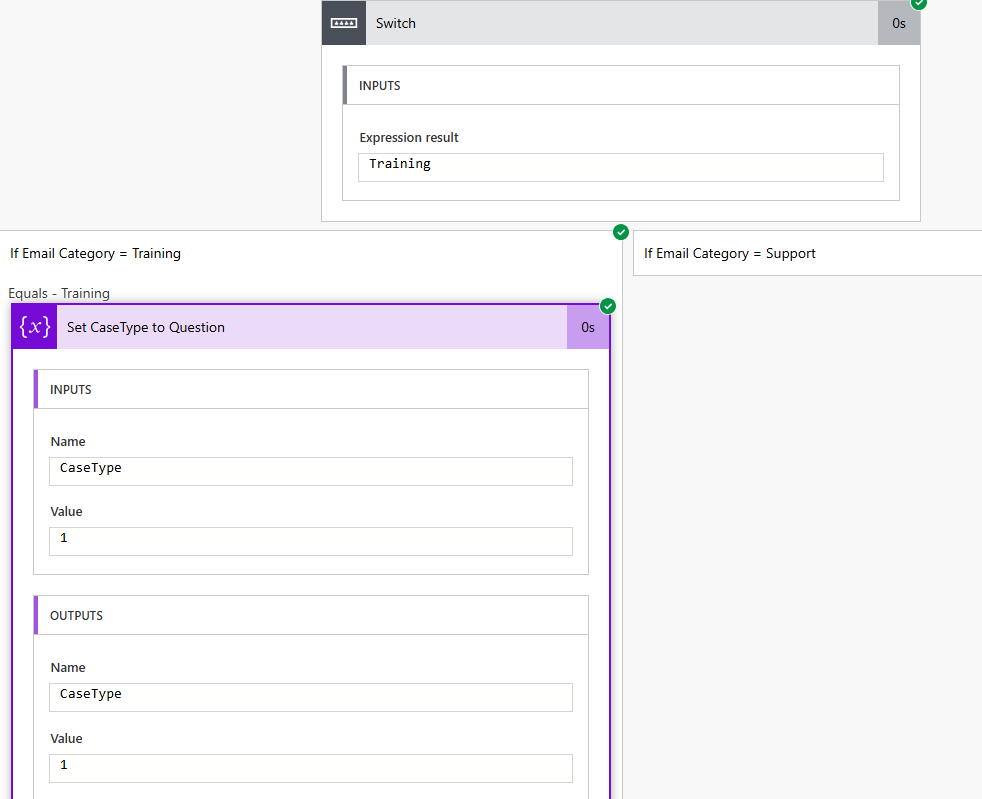
The Switch evaluates trim(string(outputs(’Get_email_classification_categories’)?[’body/msdyn_name’])) and the result is Training. The Training branch runs and sets CaseType = 1.
The Create a record action then creates the case and sets Case Type using int(variables(’CaseType’)). The case is created with Case Type = Question.
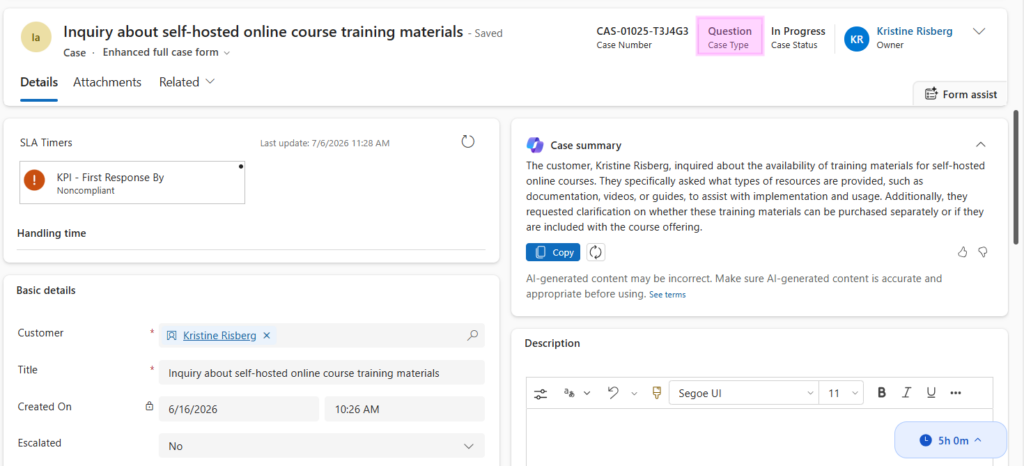
No manual categorization is needed.
Why this matters
This pattern is useful because it connects AI classification with operational case handling. Instead of using AI only as a visual label on the email, the classification becomes actionable automation.
The incoming email is still classified by AI, and the case is still created by the standard Automatic Record Creation process. But by extending the classic ARC cloud flow, we can use the classification result before the case is created and apply a meaningful Case Type as part of the creation logic.
This reduces the need for manual triage, makes case categorization more consistent, and lowers the risk of service representatives forgetting to update the Case Type after opening the case. It also creates a cleaner handoff from incoming email to created case, with better data available for routing, reporting, and downstream automation.
It also works around a real design limitation. The AI classification lives on the email record, while routing and categorization often need to happen on the case record. By using the classic ARC cloud flow, we can bridge that gap and carry the classification result from the original email into the new case.
It is a small change in the flow, but a meaningful improvement for case triage.
If you are interested in learning more about this pattern, or need assistance setting up AI-powered email classification and Automatic Record Creation in Dynamics 365 Customer Service, feel free to reach out.


Lämna ett svar