
Call recording is one of those contact center capabilities that sounds simple until you start implementing it across channels, bots, transfers, transcripts, and compliance requirements. In a traditional setup, you often end up with a mix of configuration, scripts, custom logic, and operational “please remember to…” processes.
That is why the new Consent-Based Recording for Voice AI in D365 Contact Center using Microsoft Copilot Studio voice agents is interesting.
It does not just ask the customer for consent. It turns the customer’s answer into a system-enforced signal that follows the interaction from the voice agent into the customer service representative experience.
This post walks through how to configure it, how the Copilot Studio logic works, and what the representative sees in the Copilot Service workspace.
What consent-based recording does
At a high level, the flow is:
- The customer calls an inbound voice workstream.
- The call is answered by a voice-enabled Copilot Studio agent.
- The agent asks whether the customer consents to recording and transcription.
- The caller’s response is captured.
- D365 Contact Center uses that response to decide whether recording and/or transcription should continue.
- If the call is escalated to a human representative, the same consent decision is respected in the workspace.
If the customer consents, the call can be recorded and transcribed. If the customer does not consent, the interaction continues without recording or transcription, and the representative cannot accidentally start or resume recording from the communication panel. The representative also cannot view the conversation transcript. This means that the user consent is not just a prompt to adhere to, it actually enforces logic.
Prerequisites
Before configuring consent-based recording, you need two foundational components:
- A voice channel provisioned in D365 Customer Service/Contact Center, with inbound calling configured, linked to an inbound workstream.
Microsoft notes that consent-based recording is only supported for inbound voice workstreams with a voice-enabled agent associated with them. It is not supported for outbound calls or inbound voice workstreams without a voice-enabled agent. - A voice-enabled Copilot Studio agent with a user consent topic activated.
Turning on the workstream setting for consent based recording alone does not magically create the prompt. The voice agent needs to be configured to ask for consent, so that context can be used to control the call controls.
Step 1: Configure recording and transcription on the voice workstream
- In Copilot Service admin center, open the relevant inbound voice workstream.
- Go to the phone number –> voice settings area and open the Behaviors tab.
- Under Transcription and recording, choose whether the workstream should use: Transcription only or Transcription and recording
You can also configure whether the start setting should be automatic or manual, and whether representatives are allowed to pause and resume recording. For consent-based recording, the additional setting you need is: Request for User Consent
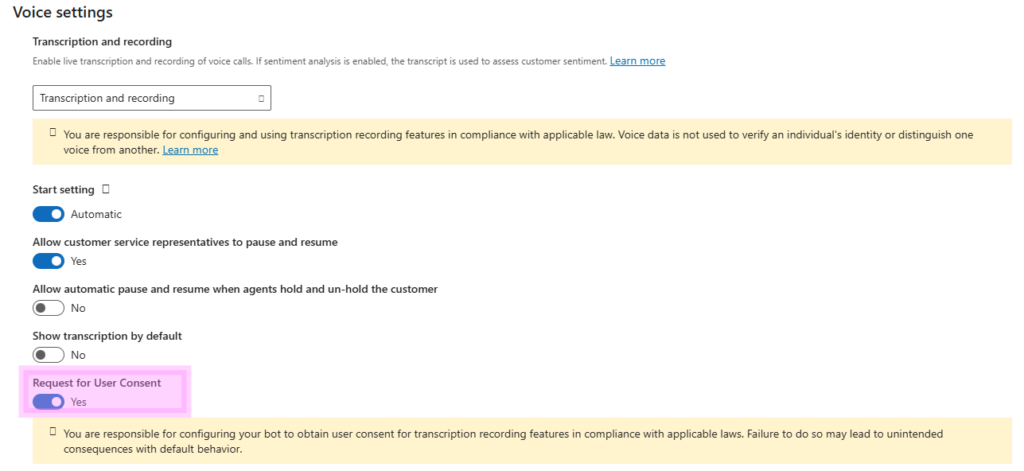
This is the workstream-level switch that tells the system to respect the consent signal handed over from the voice agent.
Step 2: Configure the Copilot Studio agent for voice
If you don’t already have a voice agent set up that you want to use to capture the user consent, create a new agent as per steps 1 – 8. If you already have a voice agent in which you want to incorporate the consent topic, start on step 9.
- In CSAC or Copilot Studio, create a new agent. Do not enable it for voice.
- Turn off authentication.
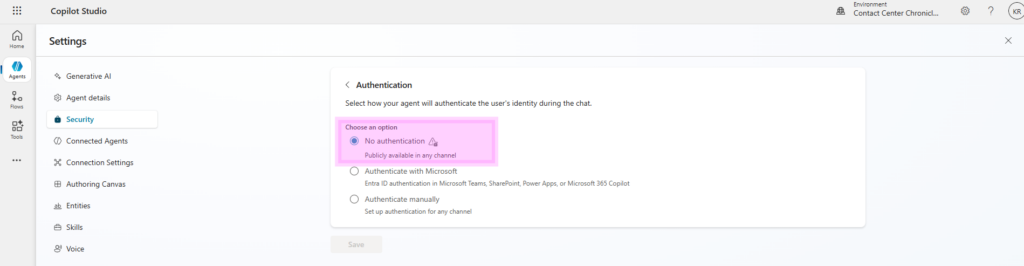
3. In Channels; turn on telephony.
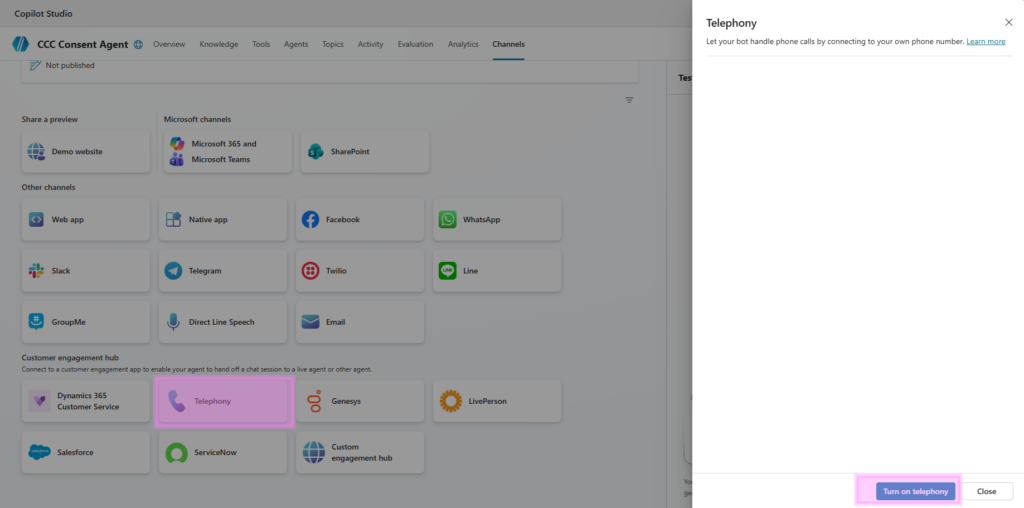
4. Connect to Dynamics 365 Customer Service/Contact Center as the engagement channel.
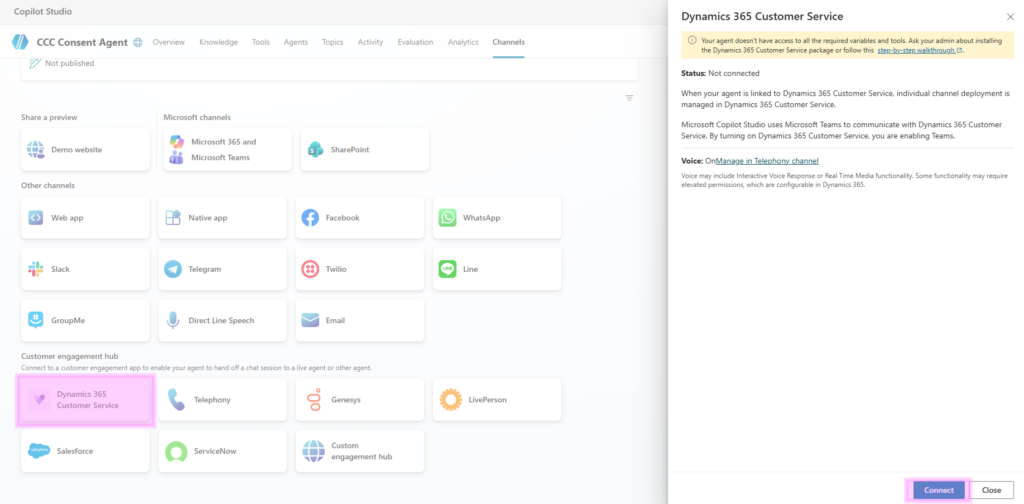
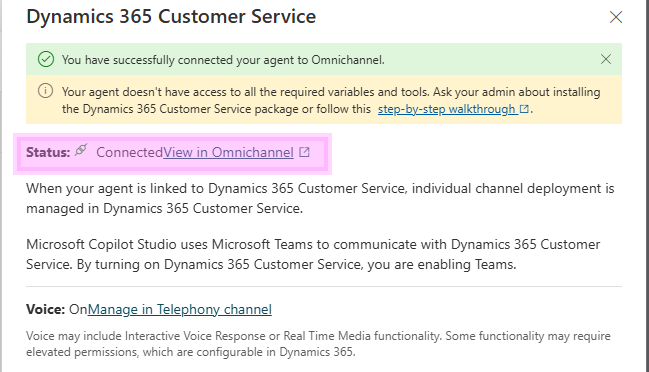
When the agent is connected to the contact center you’ll be able to see the connection status both in MCS (note that the label name is still displayed as Omnichannel):
… and in the the list of AI Agents in CSAC.

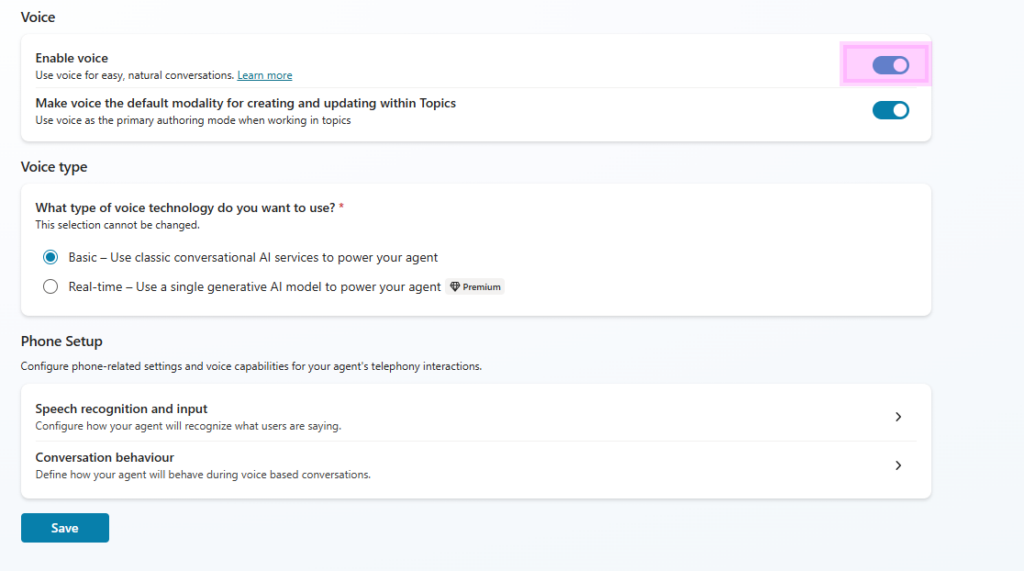
5. Then go to Voice settings in MCS and enable voice. Make sure to keep the basic model.
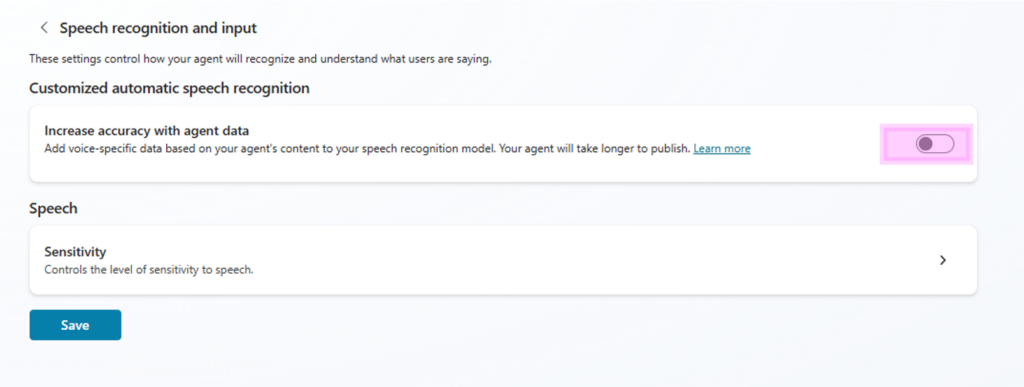
6. In the Speech recognition and input settings, disable ”Increase accuracy with agent data”.
7. Open the custom topic User Consent.
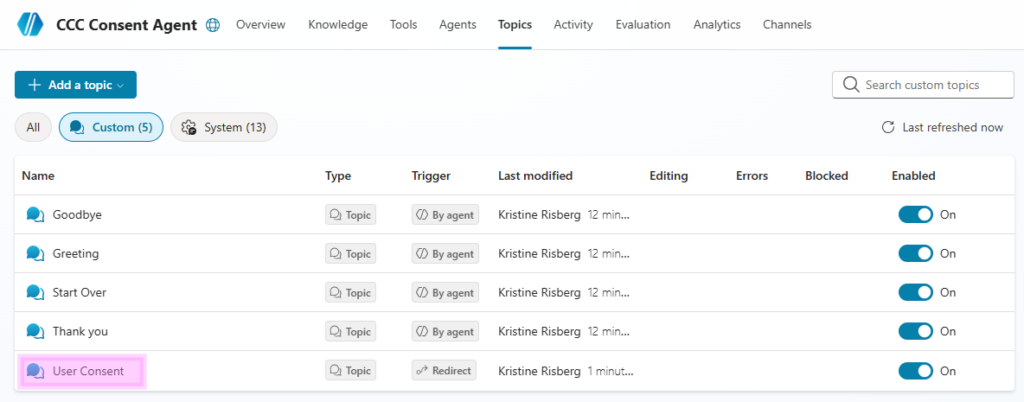
The topic is a sample template and needs to be customized and localized based on your organization needs.
You can choose to use DTMF or voice input for the user’s response. In my scenario, I’ve chosen to use voice input.
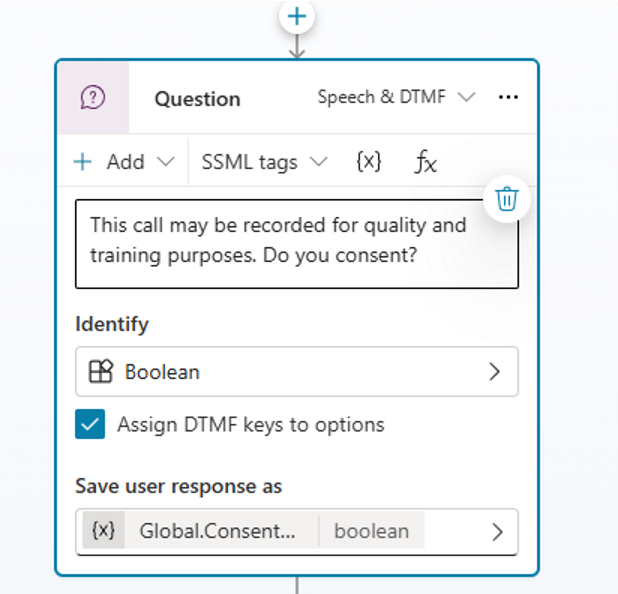
I would suggest keeping the variable as global, as it then can be used by multiple agents.
If you’re unfamiliar with topics; they’re an essential part of the agent conversation orchestration when you want your dialogue to be deterministic. The User Consent topic has a trigger called It’s redirected to, meaning that this topic will only trigger when something inside the agent triggers the topic. If you’re only using this voice agent for the sole purpose of capturing user consent, you can switch the trigger in the User Consent topic to Conversation start. This means the topic will be triggered as soon as the conversation is assigned to the agent. Your design depends on the overall design of agents and where you place the welcome message (on the voice channel, in the consent agent or in a primary voice agent).
Some makers prefer to bundle the whole dialogue into one topic (which makes sense as you can more easily visualize the flow from top to bottom), I like to section it per scenario/event and name the topic after its trigger and/or scenario, and then push the conversation between topics using appropriate transfer nodes and/or triggers.
In this scenario, I’ve kept the system topic Conversation start (with the same trigger) active because I want to use this agent as the primary entry point to control both welcoming message and CSR escalation.
8. Build the rest of the agent dialogue as needed. When you create a new agent it’ll inherit the standard (custom and system) topics that are enabled by default. If the intention is to only capture user consent, I suggest turning off all standard topics except the Conversation start and Escalation (if you want the agent to redirect the call to a service representative as soon as the consent has been captured).
9. If you have an existing agent to which you want to add a Consent topic; create new custom topic called User Consent. Configure the topic manually, or open code editor and add the code from this YAML D365ContactCenterAgents/UserConsentTopic at main · kristinerisberg-ccc/D365ContactCenterAgents The sample code is based off of Microsoft’s standard User Consent topic and uses variable Global.ConsentResponse and sends the consent result using the Sys.ConsentEvent activity.
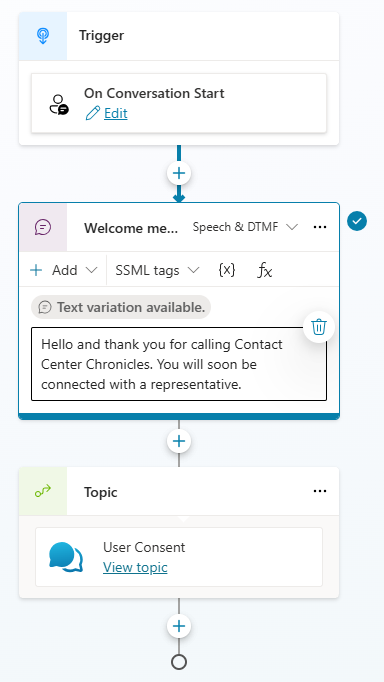
10. Open the Conversation start topic and add a redirection to the User Consent topic.
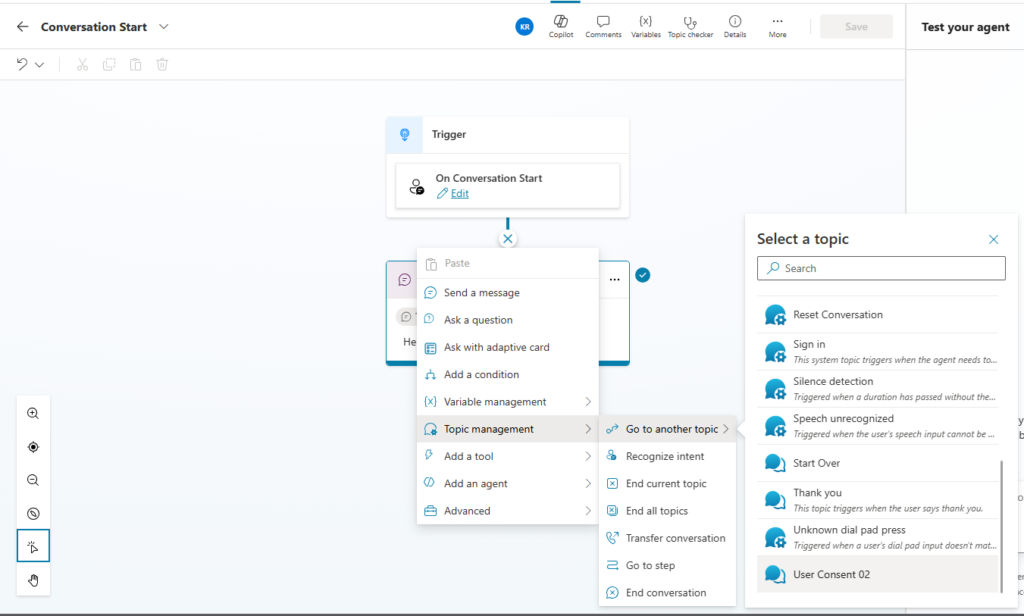
Either you add it immediately after the topic trigger or, as in this scenario, add the transfer after having the agent state a welcome message.
If the call should be transferred to a service representative after the consent has been captured, add a transfer action after the last event activity in the User Consent topic. Otherwise, add a transfer to another topic to loop the dialogue back into the standard conversation flow.
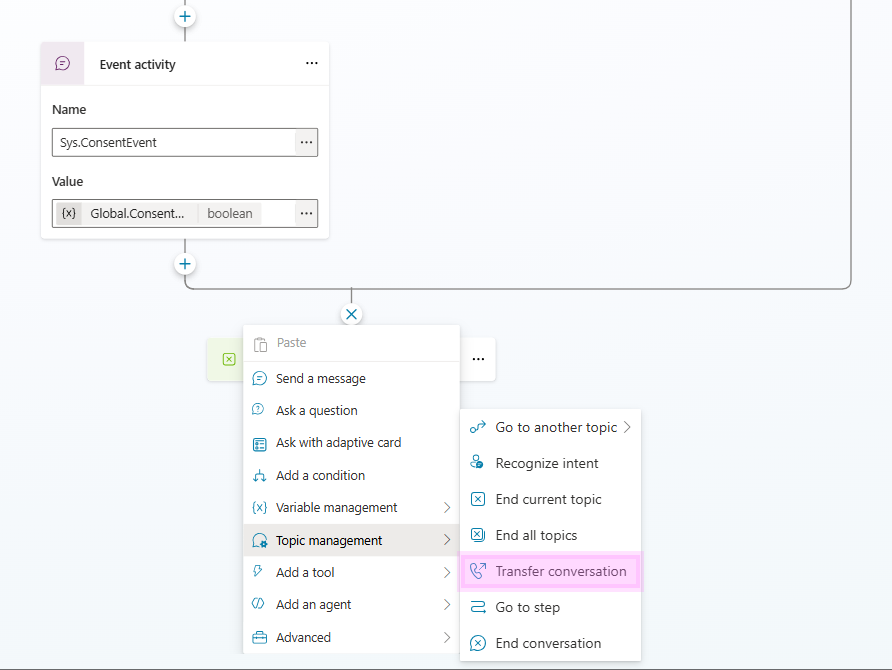
11. In the transfer action, I’ve added a message to the CSR that holds the value of the user consent response, to clearly highlight if they’ve consented to the recording. This message is only displayed if the customer consents to content capture, as declining it means the transcript of the dialogue won’t be visible.
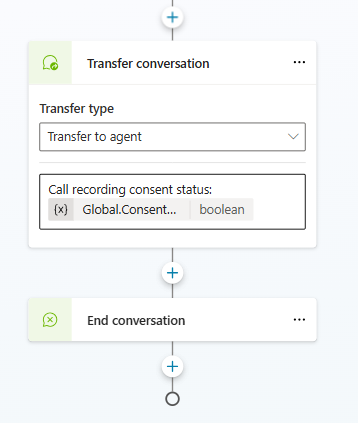
12. If no further action is needed in the agent, add an End conversation node.
13. Save and Publish the agent.
Step 3: Understand the User Consent topic logic
The User Consent topic is quite simple conceptually, but there are a few technical details worth understanding. The topic uses a global response variable to capture the consent: Global.ConsentResponse
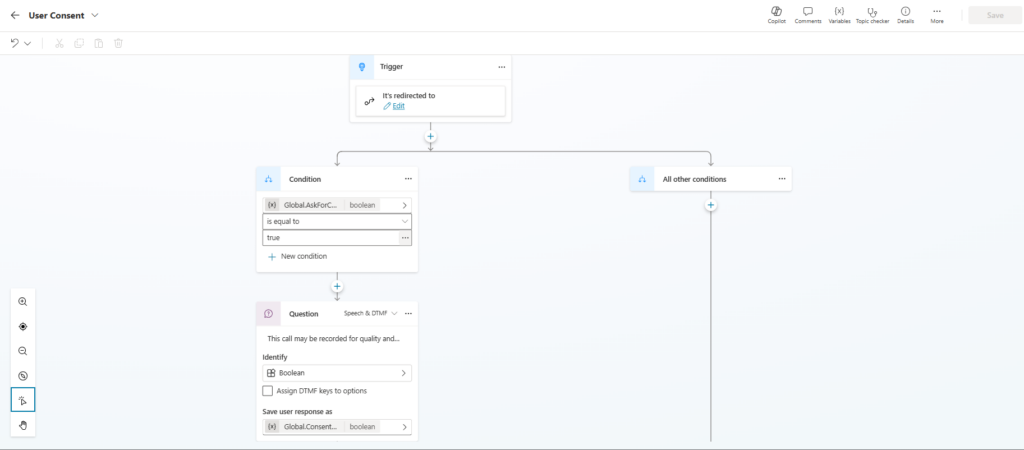
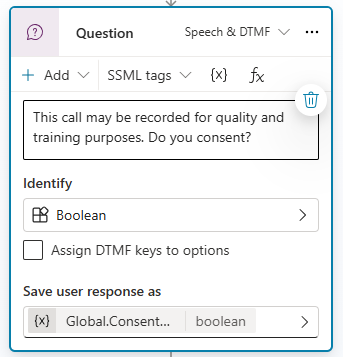
The question uses a Boolean response type, so the caller can answer with yes/no style responses. In a voice scenario, that may be spoken input or DTMF depending on how the topic is configured.
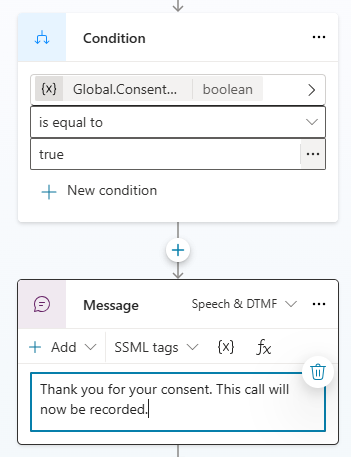
If consent response is true: The agent thanks the customer and confirms that the call will be recorded.
If consent response is false: The agent confirms that the call will not be recorded.
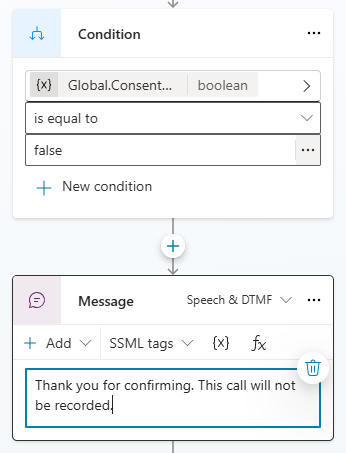
Then the topic sends an event activity back to the system: Sys.ConsentEvent
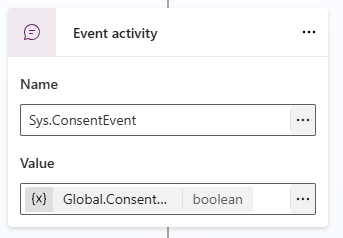
The value of this event is the caller’s consent response. This event is also the technical bridge between the Copilot Studio topic and the Contact Center recording behavior. The voice agent is not just asking a question for conversational purposes. It is emitting the consent decision so the platform can enforce it.
A simplified version of the logic looks like this:
Conversation starts
    ↓
Go to User Consent topic
    ↓
Ask: “This call may be recorded for quality and training purposes. Do you consent?”
    ↓
Store answer in Global.ConsentResponse
    ↓
If true:
    Tell customer the call will be recorded
If false:
    Tell customer the call will not be recorded
    ↓
Send Sys.ConsentEvent with Global.ConsentResponse
    ↓
Continue the conversation
Step 4: Test the consent paths
When testing this, do not only test the happy path; test both outcomes.
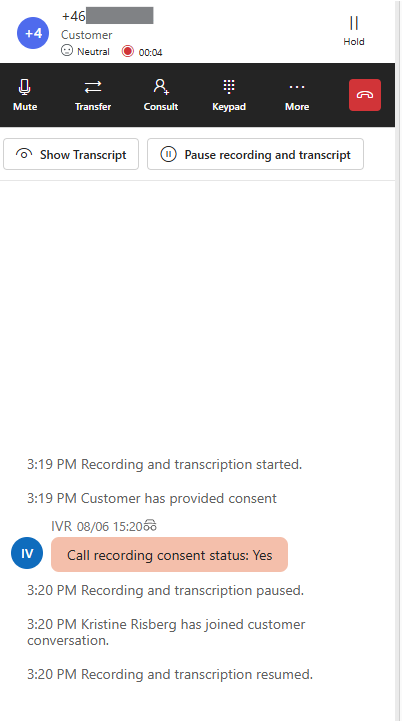
Scenario 1: Customer gives consent
Expected behavior:
- The voice agent asks for consent.
- The customer says yes.
- The agent confirms that the call will be recorded.
- Recording and transcription are available.
If the call is transferred to a representative, the representative can see the transcript and recording controls depending on the workstream configuration.
Scenario 2: Customer declines consent
Expected behavior:
- The voice agent asks for consent.
- The customer says no.
- The agent confirms that the call will not be recorded.
- When the call is transferred to a representative, the transcript is not displayed, recording/transcription does not continue, and the representative cannot start or pause recording and transcripts.
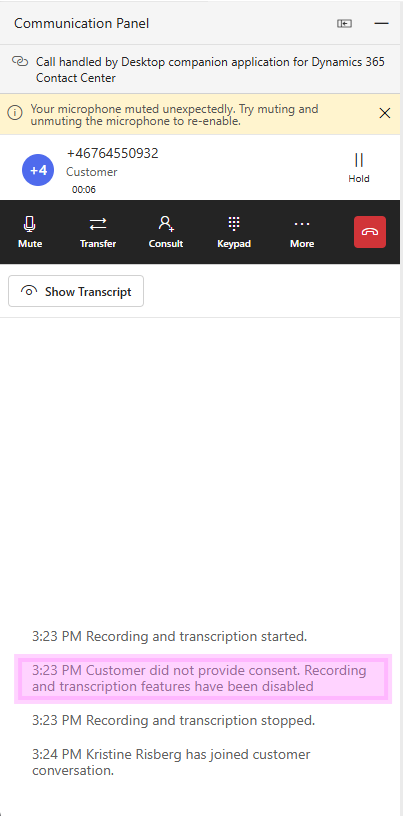
This is where the feature becomes valuable in real-life contact center operations. The CSR does not need to remember or check what the caller confirmed. The system already knows.
If consent was not granted, the workspace experience is restricted. The representative does not receive the transcript, and recording controls are not available for that interaction.
A consent decision captured by the voice agent should not become optional later in the call. If the customer has declined recording, the representative should not be able to override that accidentally.
This also applies when calls are transferred or when consult scenarios are used inside D365 Contact Center. Microsoft states that recording and transcription continue based on the original caller consent choice during transfers and consults.
Important behavior to know
There are a few details that are worth calling out before implementing this in a production environment.
1. The workstream setting and the Copilot topic must match
If Request for User Consent is enabled on the workstream but the agent is not configured to ask for consent, the system may still proceed with recording and transcription because no consent signal has been captured. Microsoft describes this configuration as treating customers as opted in when the workstream setting is on but the Copilot Studio topic is off.
So do not treat the workstream toggle as the whole implementation. The implementation is the combination of workstream setting –> agent assignment to workstream –> User Consent Topic –> context handover from Copilot agent to call orchestration.
2. No input can become implicit consent
This one can be a bit tricky, and surprising. If the caller does not provide input to the consent prompt, or provides an input that is interpreted as a confirmation, the system can treat this as implicit consent and start recording and transcription. Microsoft explicitly warns administrators and makers to verify that the voice agent is configured correctly.
This is one of the first things I would review with a legal or compliance stakeholder and test thoroughly using different audio (or silent) inputs. Technically, you can configure the topic logic, prompts and retry behavior. But from a business perspective, you need to decide what should happen if the caller is unclear or does not answer.
3. The consent prompt itself is handled differently
There is a small but important detail in the recording lifecycle.
Microsoft states that call recording starts when the caller connects to the voice-enabled agent. If the caller does not provide consent, the recording immediately stops. To support compliance, the system saves the consent prompt and caller response, stores that recording in Microsoft-managed storage, and automatically deletes it within two hours. Customers cannot access this temporary recording.
This is important to understand when explaining the technical behavior to customers, and to legal and compliance stakeholders. The platform needs to capture proof of the consent interaction, but that consent prompt recording is not treated as a normal accessible call recording.
4. External transfers are different
If the call is transferred outside D365 Contact Center to a non-Microsoft party, Microsoft does not record or transcribe that part of the call. Microsoft also does not control whether the external party records the call using their own systems.
So if your voice architecture includes external transfers, direct routing, third-party carriers, or downstream platforms, you still need to review the full recording and compliance chain with those third-party providers.
Lämna ett svar